Blocking a number on a phone stops incoming calls and SMS notifications. A common question is what happens to these messages once the block is active: are they deleted, stored somewhere, or permanently lost? The answer depends on the operating system and the messaging app used, and the differences in behavior between Android and iPhone are more pronounced than one might think.
Behavior of Blocked SMS According to the System: Android vs. iPhone
The handling of messages from a blocked contact varies radically from one platform to another. Here is a comparison of the default behaviors.
| Criterion | Android (Google Messages) | iPhone (iMessage / SMS) |
|---|---|---|
| Storage of Blocked SMS | Kept in the “Spam and Blocked” folder | No visible folder for blocked SMS |
| Retention Period | Kept indefinitely as long as they are not manually deleted | Not recoverable after the blocking period |
| Access During Blocking | Yes, via Messages > Menu > Spam and Blocked | Not accessible |
| Recovery After Unblocking | Messages still available in the dedicated folder | Only future SMS are received, not the history |
| Notification on Receipt | No notification | No notification |
This table shows a fundamental gap. On Android with Google Messages, blocked SMS are kept indefinitely in an accessible folder at any time. On iPhone, lifting the block allows receiving the next messages, but SMS sent during the blocking period remain inaccessible.
For those looking to receive SMS from a blocked contact, this difference in storage dictates the entire process to follow.
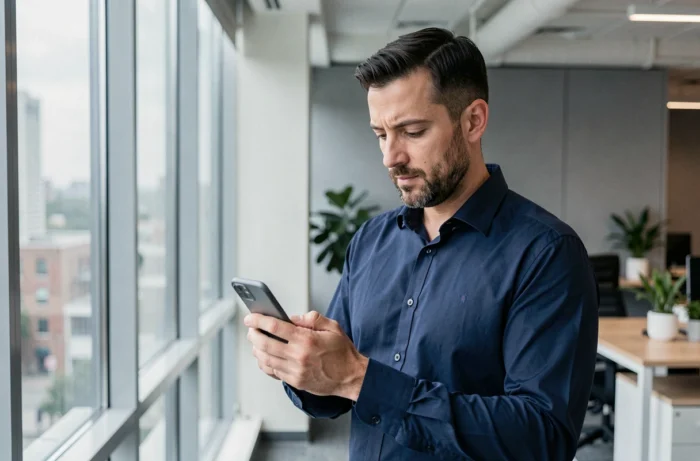
Spam and Blocked Folder on Android: Where to Find Filtered Messages
On Android phones using Google Messages, filtering does not only concern contacts manually blocked. The app also automatically classifies certain messages as spam, which can be surprising.
The access path varies depending on the version of the app and the brand of the phone. Two common paths are:
- Open Google Messages, tap the menu (three dots in the top right), then select “Spam and Blocked” to view all filtered messages
- On some Samsung smartphones, go through Phone > Settings > Blocked Numbers, then check the list of held SMS
- If a legitimate message has been incorrectly classified, the action “Not Spam” re-authorizes future messages from that sender
The existence of this folder changes the game. As long as the user does not manually delete the messages, they remain viewable. In other words, on Android, blocking works more like a silent filter than a deletion.
Check Operator Filters Before Searching on the Phone
An SMS that does not arrive is not always blocked by the device. The filtering may come from the mobile account itself: parental controls activated by the operator, anti-spam filtering at the line level, or restrictions on a type of number (premium, international).
Before changing the phone settings, checking the operator’s customer space can eliminate this cause. An operator block leaves no trace in the phone’s “Spam and Blocked” folder, which can give the impression that the message was never sent.
Unblocking a Contact on iPhone: What is Recoverable and What is Not
On iOS, the unblocking procedure goes through Settings > Phone (or Messages) > Blocked Contacts. Removing a number from this list takes effect immediately for future calls and SMS.
However, SMS sent during the blocking period are not restored in the conversation. Apple support guides confirm this limitation: unblocking opens the door to the next messages, but does not reconstruct the missing history.
This constraint leads some users to consider workarounds. The most reliable options remain limited:
- Restoring an iCloud backup prior to the block, which means losing more recent data
- Using third-party iOS data recovery software, with no guarantee of results on SMS filtered at the system level
- Asking the sender to resend the messages after unblocking, the simplest solution when possible
Restoring a backup remains the most documented option, but it comes with a trade-off: all phone data returns to the state of the chosen backup.
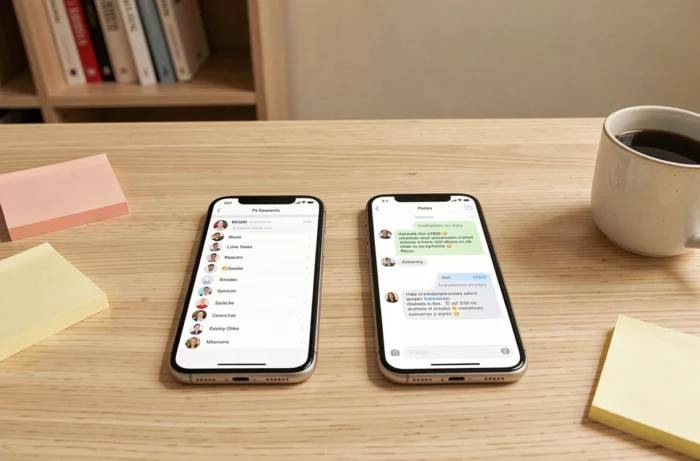
Samsung Apps and Manufacturer Overlays: Different Access Paths
Samsung smartphones sometimes use their own Messages app instead of Google Messages. The folder for blocked SMS exists, but its location differs. On some Galaxy models, blocked messages appear in a dedicated section accessible from the settings of the Samsung Messages app.
This fragmentation complicates the search. A user following a tutorial meant for Google Messages on a Samsung with the native app will not find the menu in the same place. Checking which app manages SMS by default (Google Messages or Samsung Messages) is the first reflex to have.
On phones from other brands running Android, behavior generally follows that of Google Messages, but software overlays may add additional filters. Xiaomi, for example, integrates an anti-harassment filter that classifies certain messages into a separate folder from Google.
When the Problem Comes from Neither the Phone Nor the Operator
Power-saving mode or airplane mode accidentally activated can also block the reception of SMS. These situations have nothing to do with blocking a contact but produce the same symptom: messages that do not arrive. Checking airplane mode and battery restrictions before touching the blocked contacts list avoids unnecessary manipulations.
A saturated storage space can also prevent the reception of new SMS. This scenario is rarer with current phone capacities but remains relevant on older devices or those with limited internal memory.
The key takeaway is this: on Android, blocked SMS are probably still there, in a silent folder. On iPhone, they are not. The course of action entirely depends on this distinction.